If you are testing in a room that is not used as a regular classroom, depending on the layout and conditions, the number of devices connected to WiFi in the room may approach a threshold where the WiFi becomes slow and less reliable. If the testing proctor or SPOC feels that personal or other devices in the room during a test would interfere with the WiFi, they can request the guest WiFi (named CSD Guest) be disabled for the duration of the test.
To make this request, submit an IIQ work ticket for Network/WiFi>WiFi Connectivity>CSD Guest and specify the date, time, and room number(s) of the test that they would like the CSD Guest WiFi to be disabled for. The Technology Services Network Team will need 1 week of lead time to complete requests.
More Details
When a single access point has around 90 devices connected to it at the same time, the access point can get bogged down and limit traffic for all devices. It doesn’t matter if all these devices are active or if they are sitting unused in someone’s pocket or backpack, as long as they are turned on they will try to connect. This includes phones, game consoles, iPads, Chromebooks, laptops, smart watches, etc.
This is especially true when the room is isolated and doesn’t have classrooms on the other side of the wall to help with any overflow connections. For example, Cheldelin’s library is away from any other connections and would be more prone to this issue than a classroom.
If a regular class is in the space and hasn’t been having any issues, then testing shouldn’t have any issues in the same room. You should only need to worry about this if you are testing in a location that is not used as a regular classroom. If you are unsure if this would be an issue, please reach out to your SPOC for an evaluation of the space.
One possible solution is to disable the guest WiFi (named CSD Guest) in the rooms where testing is taking place during the test so that personal devices cannot connect. This limits the number of connected devices to just district owned ones so there is very little chance of ever reaching the threshold. This will stop all connections to Corvallis School district WiFi including the proctor’s personal devices but will not affect district owned devices.
If test proctors would like to try this option during tests, they need to submit an IIQ work ticket for Network/WiFi>WiFi Connectivity>CSD Guest and specify the date, time, and room number(s) of the test that they would like the Corvallis School District WiFi to be disabled for. Please give at least 1 week lead time. The building SPOC can show proctors how to create a work ticket if needed.
2026-01-16 11:34
Angela Greensweight
Guide For Submitting Hotspot Requests
Product: T-Mobile Hotspot
Audience: Technology Services, Principals, OMs, Counselors, Family Advocates, Case Managers
Overview
Please use this process when submitting a request for a staff or student who has a need for a hotspot.
Staff requests need to be approved by the Principal or OM and student requests need to come from either the Principal, OM, Counselor, Family Advocate, or Case Manager.
Request a Hotspot
Submit a ticket for Technology Purchasing & Equipment Requests
Open the Technology Service Center
Also known as IncidentIQ, there are two easy methods of accessing the ticketing system:
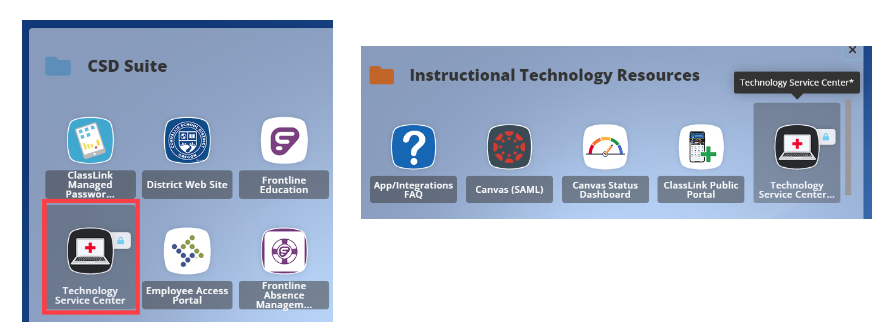
Technology Service Center shortcuts can be found in the CSD Suite and Instructional Technology folders
Click to Zoom
Select the Ticket Type
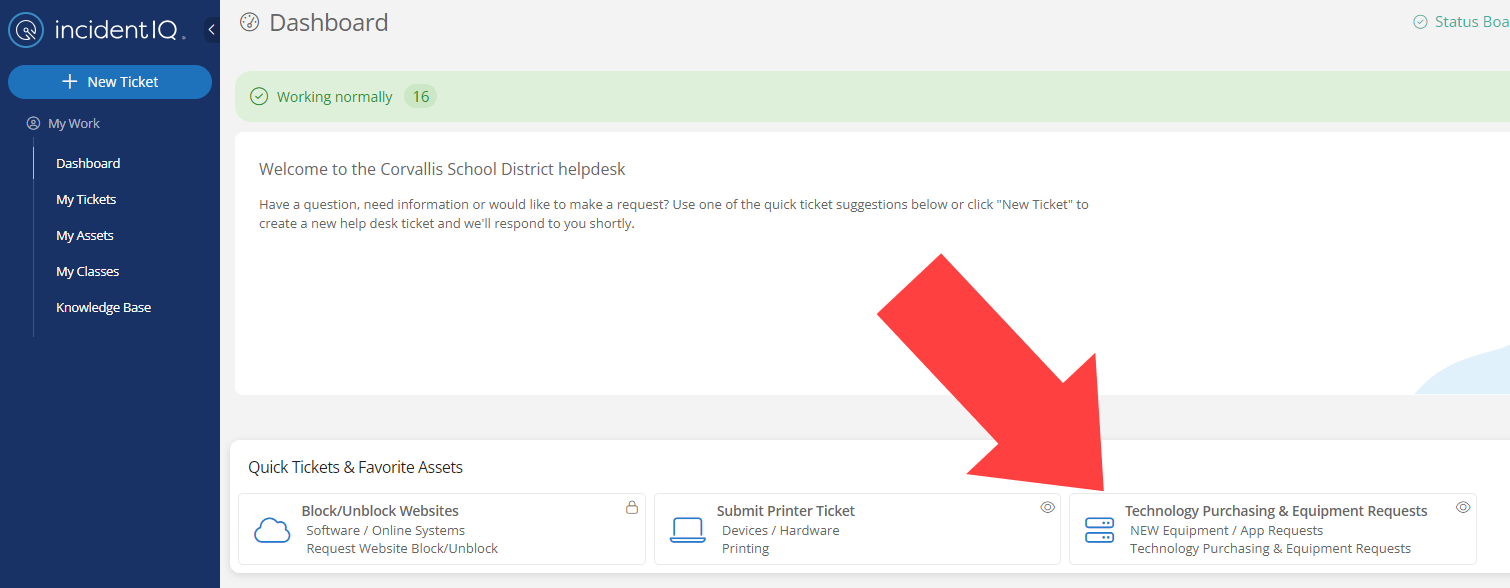
On your Dashboard, locate the Quick Tickets section and select Technology Purchasing & Equipment Requests
Click to Zoom
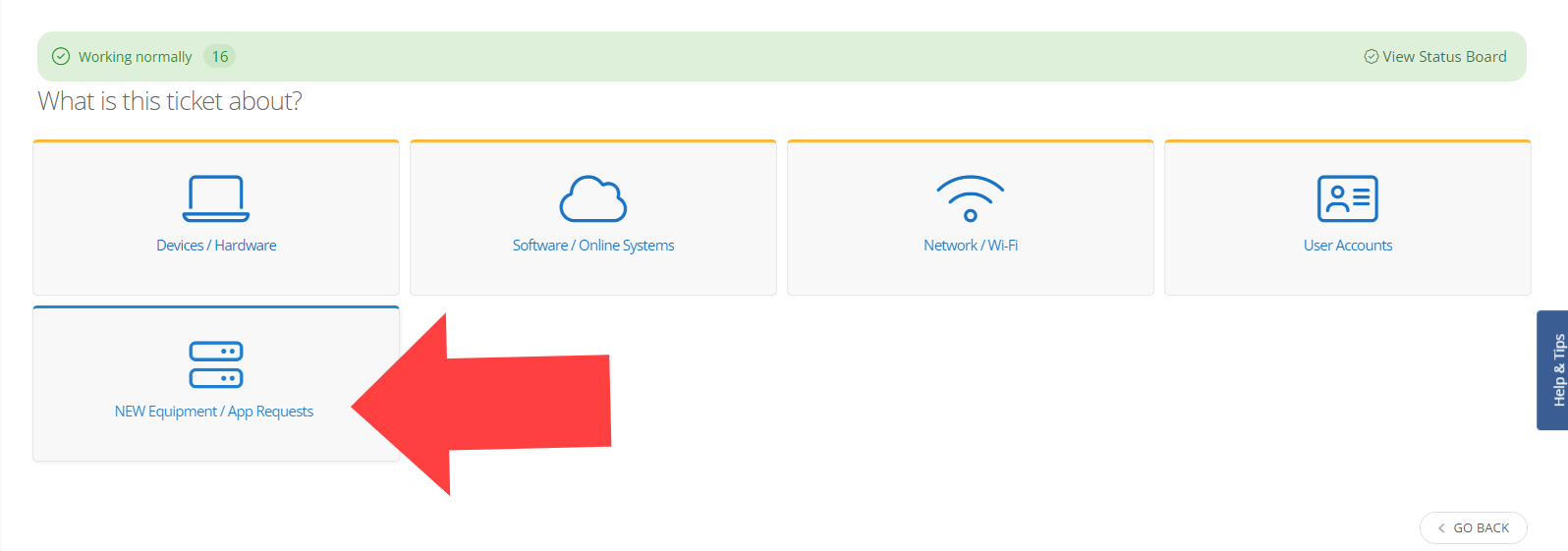
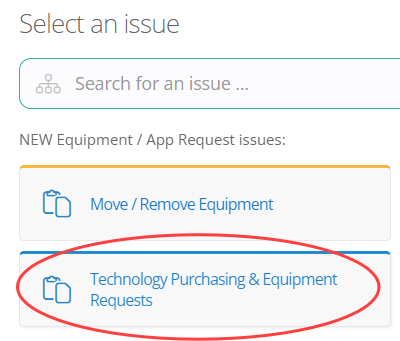
Alternatively, use the New Ticket button and select NEW Equipment / App Requests > Technology Purchasing & Equipment Requests to access the same ticket type.
Click to Zoom
Submit the Ticket
Enter the required information and submit the ticket. Your request will be routed to the most applicable team.
Click to Zoom
Details: what info is required?
Describe your issue
Provide information about the need for a Hotspot.
If requesting multiple hotspots, indicate the number of people who will be using the hotspots and the location.
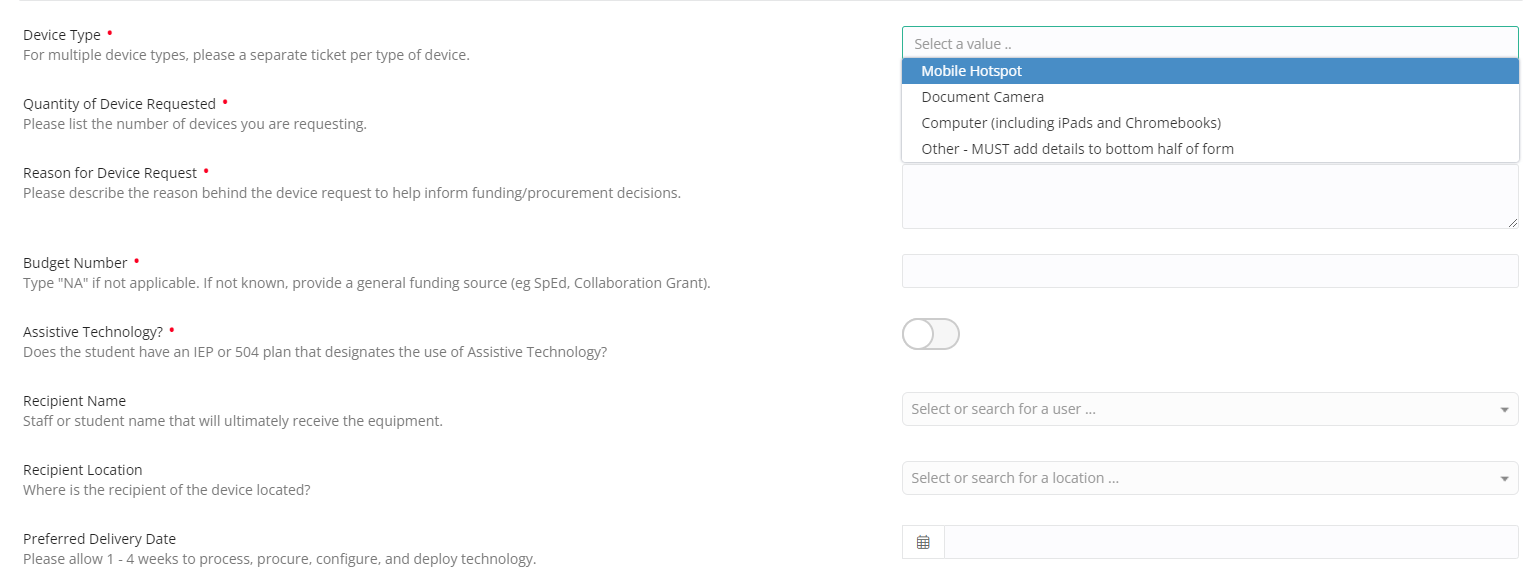
Quantity of Device Requested
Total number needed (you can usually have 3-5 people on one device depending on what internet activities will be occurring)
Reason for Device Request
Give details of the need or refer to the description
Budget Number: enter 0 or N/A
Assistive Technology (AT) Device: Switch on to green if this is for an AT student, otherwise leave off
Recipient Name: Who will be using the device
Recipient Location: Building they work in or attend school at (so we know where to send it)
Preferred Delivery Date
Enter the date the student or staff member needs it by
Please keep in mind that the processing of the request could take up to a week or longer depending on availability of devices
Does this ticket contain protected student information
Select “Yes” if the request is for a student
Attach Files(s)
If you are not one of the above that are allowed to approve hotspot requests, please include documentation of conversations showing that either the Principal or OM have approved the request
Click Submit Ticket once you have entered all pertinent information
Conclusion
Once you have completed the request, please follow up with your building SPOC to ensure they are aware of the request and are checking on the status of your request.
2026-01-16 11:42
Swearingen, Miriam
Cloudflare
Cloudflare is a secure tunnel for accessing the S drive when off of the district network. Technology will install the Cloudflare WARP client for staff who have been identified as needing offsite S drive access. Here are the instructions on how to log in and use Cloudflare. Please note that Cloudflare only works when you are not connected to the district network.
Logging in
Launch the Cloudflare WARP client.
Select the Cloudflare logo in the menu bar.
Click Next
Click to Zoom
4. Click Accept
Click to Zoom
5. Click the gear icon and then Preferences (make sure you are Disconnected)
Click to Zoom
6. Click Account and then Login with Cloudflare Zero Trust
Click to Zoom
7. Enter csd509j in the team name
8. Click Google Workspace
Click to Zoom
9. Choose your district account
Click to Zoom
10. You have now authenticated. Click the Always allow checkbox and then Open Cloudflare WARP.
Click to Zoom
11. The name will change from WARP to Zero Trust. Toggle the Zero Trust icon on when you are off site and need S drive access. Toggle it off when you are done. Do not use while on the district network.
Click to Zoom
2026-01-16 11:40
Greensweight, Angela
Google Voice Requests
Bottom Line Up Front
Google Voice is a telephone service that provides a U.S. phone number to Google Account customers, in this case to the Corvallis School District. Google Voice gives you a phone number for calls, texts, and voicemails. You can use this number to make domestic and international calls from your web browser and mobile devices.
Background
Google Voice is beneficial if you need to make calls and do not have a work desk phone and do not wish to use your personal number for work. Below are good cases for using Google Voice:
An employee who does not have a phone in one or more of their work locations.
A work number is not provided but the job requires making calls to parents and/or vendors.
Texting is needed as a way of communications for work.
More Background
Google Voice is not a free service, unlike most other Google services provided to the Corvallis School District. There is a license required for each user to access and use Google Voice. The district does not have an unlimited number of licenses, and in fact must pay for them each month.
Process
If you feel you fall into one of the above-mentioned scenarios and wish to use Google Voice, the process to get a Google Voice number is as follows:
Communicate your need and request to your building administration.
Building administration must approve the request.
The building Office Manager then submits a ticket with Technology.
(Select Software/Online Systems and then Google Voice.)
Click to Zoom
The Technology Systems Team will be assigned the ticket and will then issue the user a license and number.
An email will automatically be sent to the end-user with instructions on how to use Google Voice.